 Post : bserve | 2026-09-26
A gaming console that suddenly stops turning on can be frustrating, especially when you are ready to play your favorite game. If your gaming console is not turning on, the problem may be caused by something simple such as a faulty power cable, damaged power adapter, overheating, or a loose connection. In some cases, the issue may be related to internal components such as the power supply, motherboard, or storage system.
Before taking your console to a repair technician, there are several basic troubleshooting steps you can safely try. This guide explains the common reasons why a gaming console may not turn on, the warning signs to look for, and practical solutions.
There are several possible reasons why a console may fail to power on. Identifying the symptoms can help determine whether the problem is related to the power source, accessories, software, or internal hardware.
Common causes include:
Understanding these possibilities can make troubleshooting easier.
One of the first things to check when your gaming console is not turning on is the power connection. A loose or partially connected cable can prevent the console from receiving sufficient power.
Disconnect the power cable from the console and wall outlet. Wait for a few seconds and reconnect it firmly. Make sure the connector is properly inserted.
If you are using a power strip or extension board, try connecting the console directly to a working wall socket. This can help determine whether the power strip is causing the issue.
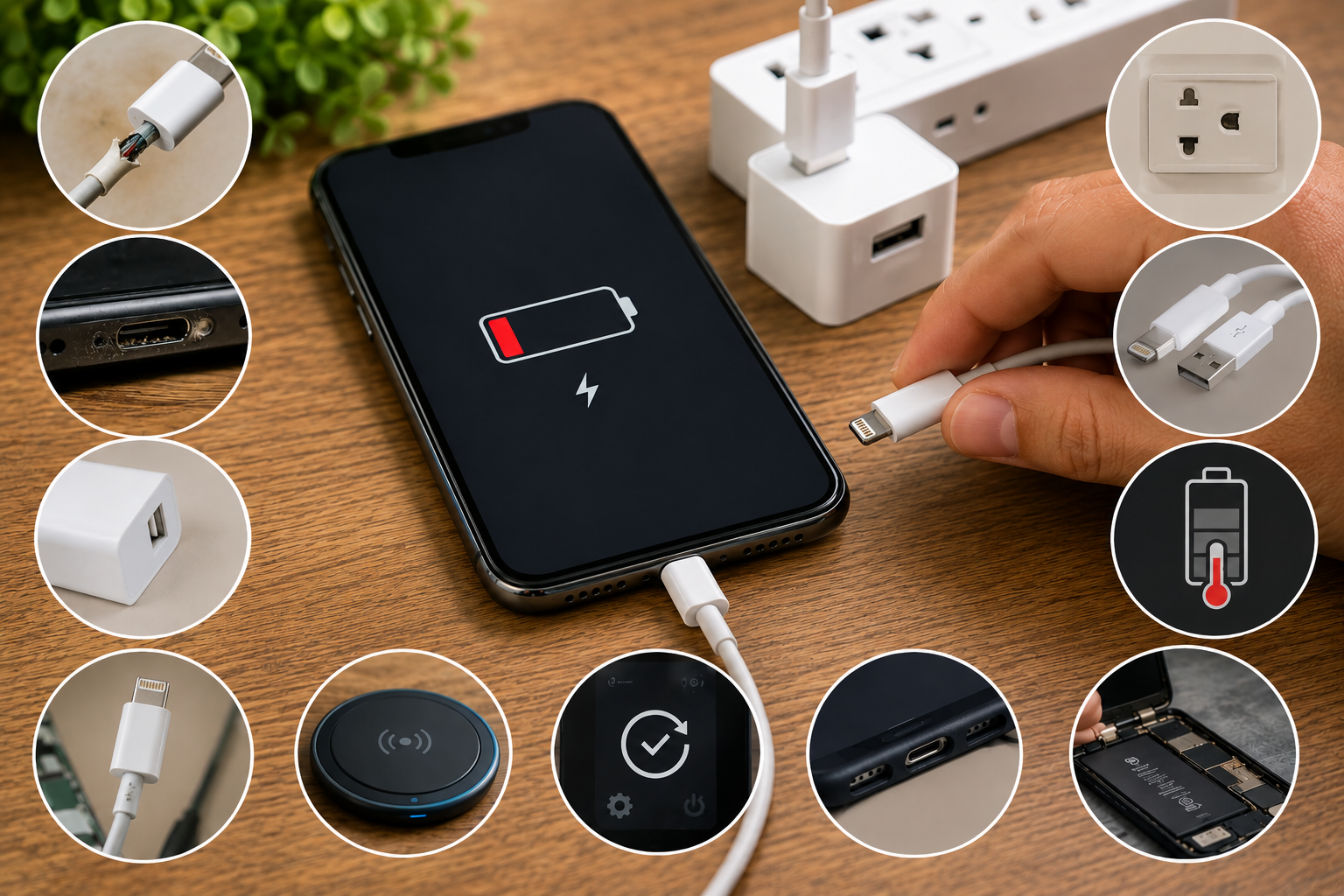
A damaged power cable can prevent a gaming console from receiving power. Check the cable for visible cuts, bent connectors, burns, or other physical damage.
For consoles that use an external power adapter, inspect the adapter for unusual sounds, overheating, or visible damage.
If you have access to a compatible replacement cable or adapter that meets the manufacturer's specifications, testing it can help identify whether the original power accessory is defective.
Do not use an incompatible power adapter simply because the connector appears to fit. Incorrect voltage or power specifications can damage electronic components.
Sometimes the console itself is not the problem. The electrical outlet may not be providing power.
Plug another working device into the same outlet to check whether it functions correctly. You can also try connecting the gaming console to another wall outlet.
If the console works from another outlet, the original socket or power strip may require attention.
A power reset can sometimes resolve temporary electrical or system-related problems.
Turn off the console completely if possible and disconnect it from the power source. Leave it unplugged for several minutes. Then reconnect the power cable and try turning it on again.
This process can clear certain temporary states and allow the console to restart normally.
The exact reset procedure can vary between gaming console models, so it is important to follow the manufacturer's recommended instructions.
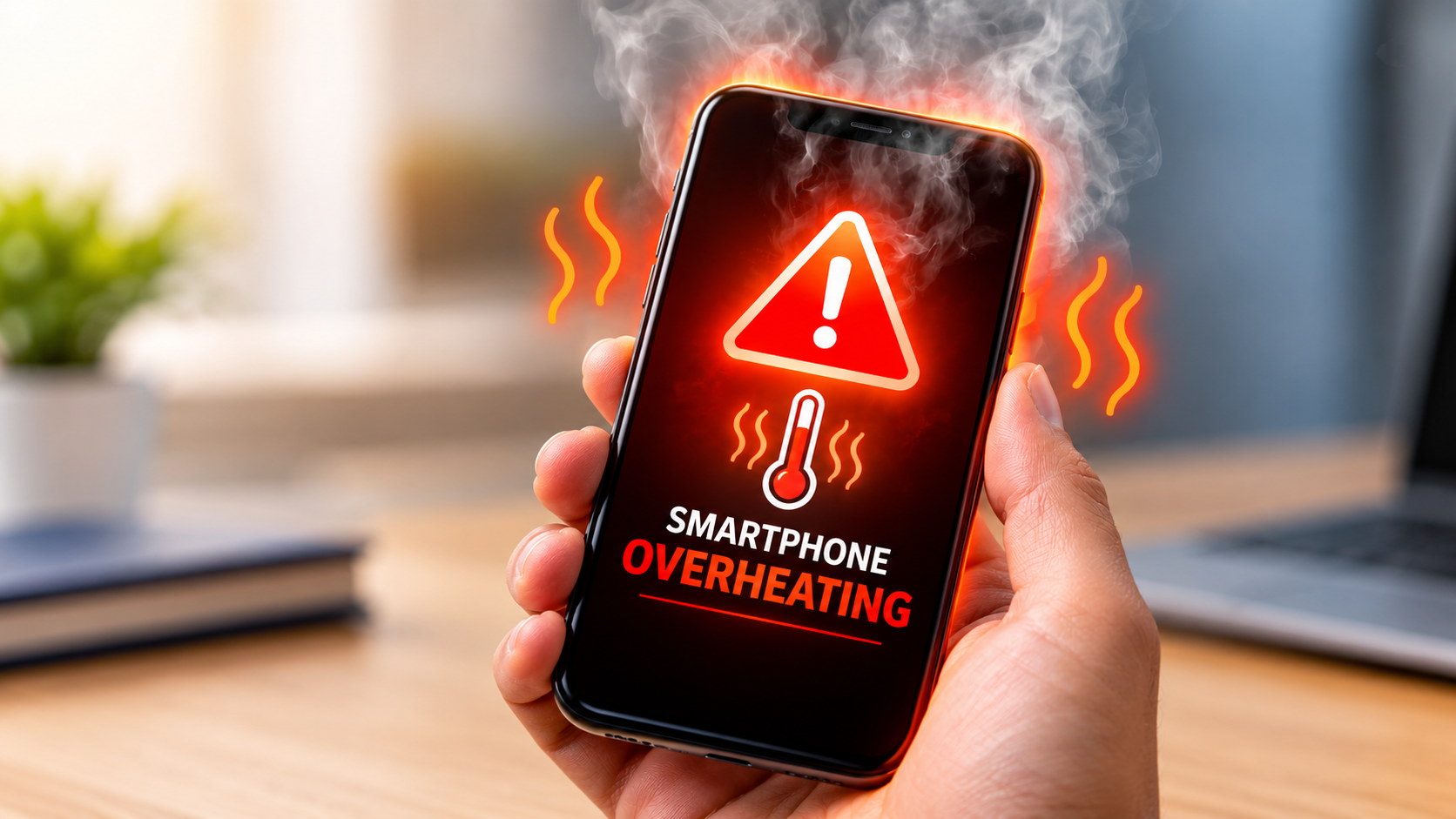
Overheating can cause a gaming console to shut down unexpectedly or refuse to start until its temperature returns to a safer level.
If the console was recently running for a long period, especially while playing graphics-intensive games, allow it to cool down completely.
Also check the area around the console. Avoid placing it inside a closed cabinet or directly against a wall where airflow is restricted.
Keep ventilation openings clear and make sure the console has sufficient space around it for proper airflow.
Dust buildup can restrict airflow and contribute to overheating. Over time, dust may accumulate around ventilation openings and cooling components.
Regularly clean the exterior ventilation areas using appropriate cleaning methods recommended for your console. Avoid forcing dust deeper into the device.
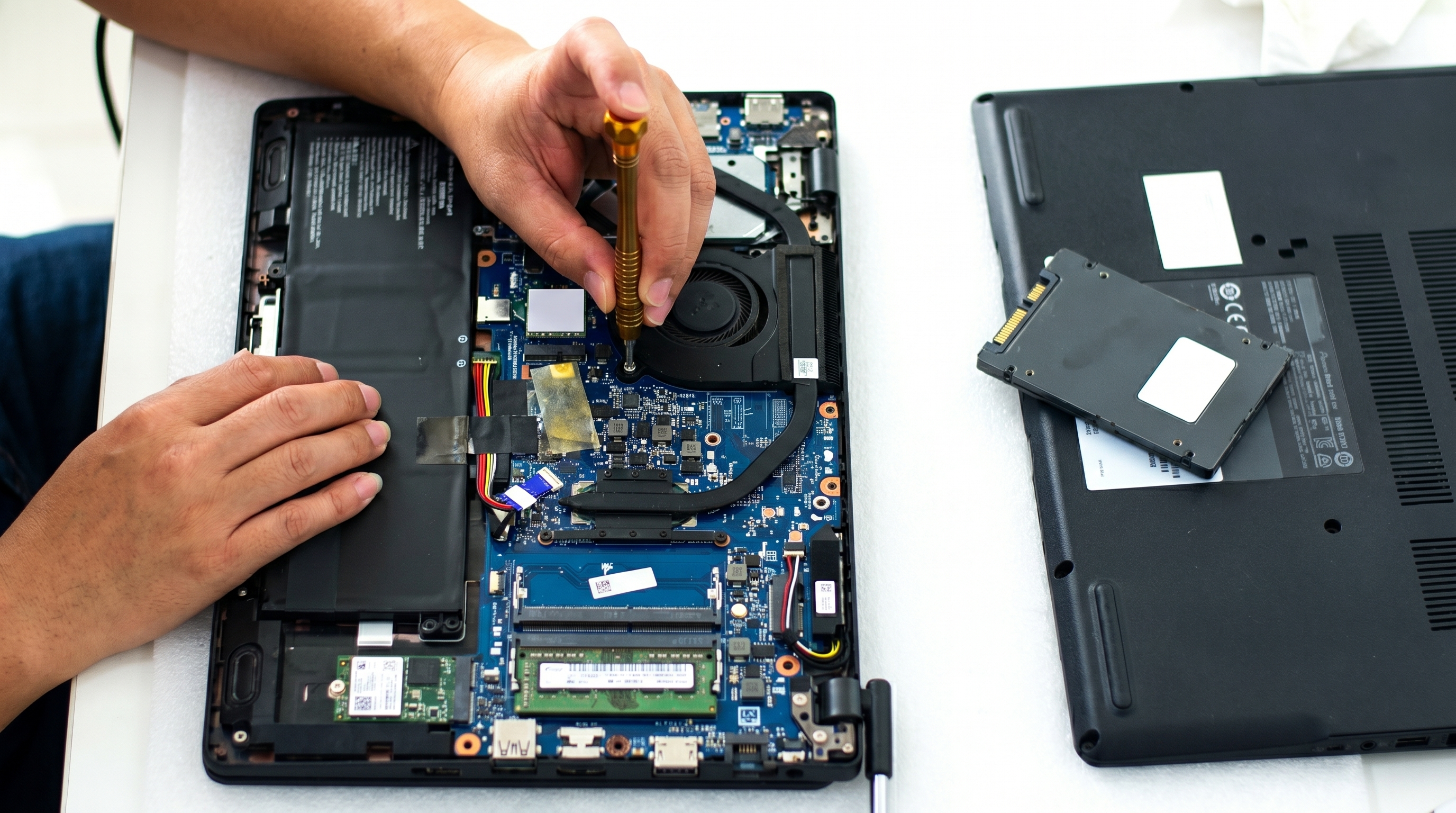
If the console has significant internal dust buildup, professional cleaning may be safer than opening the device yourself, particularly if you are unfamiliar with electronic hardware.
The behavior of the power indicator can provide useful information.
For example, depending on the console model:
Because indicator meanings differ between console manufacturers and models, check the official documentation for your specific device.
Sometimes a console appears to be "not turning on" when it is actually powering on but not displaying an image.
Check whether the console's power indicator or fan activates. Then inspect the HDMI cable and make sure it is securely connected to both the console and television or monitor.
Select the correct HDMI input on the display device.
If possible, test another compatible HDMI cable or another display. This can help determine whether the problem is with the console or the display connection.
External accessories can occasionally interfere with startup.
Disconnect unnecessary devices such as USB storage drives, charging accessories, external hubs, or other peripherals. Then try starting the console with only the essential power and display connections.
If the console starts normally after removing an accessory, reconnect devices one at a time to identify the possible source of the problem.
A console may fail to start correctly because of a corrupted system update, software error, or interrupted installation.
Some consoles provide recovery or safe-mode options that allow users to perform troubleshooting actions such as restarting the system, updating system software, or repairing certain storage-related issues.
Always follow the official recovery instructions for your particular console model. Avoid selecting options that erase saved data unless you understand the consequences and have appropriate backups.
If basic troubleshooting does not work, the internal power supply may be faulty.
The power supply converts incoming electrical power into the appropriate power required by the console's internal components. A failure in this section can result in symptoms such as:
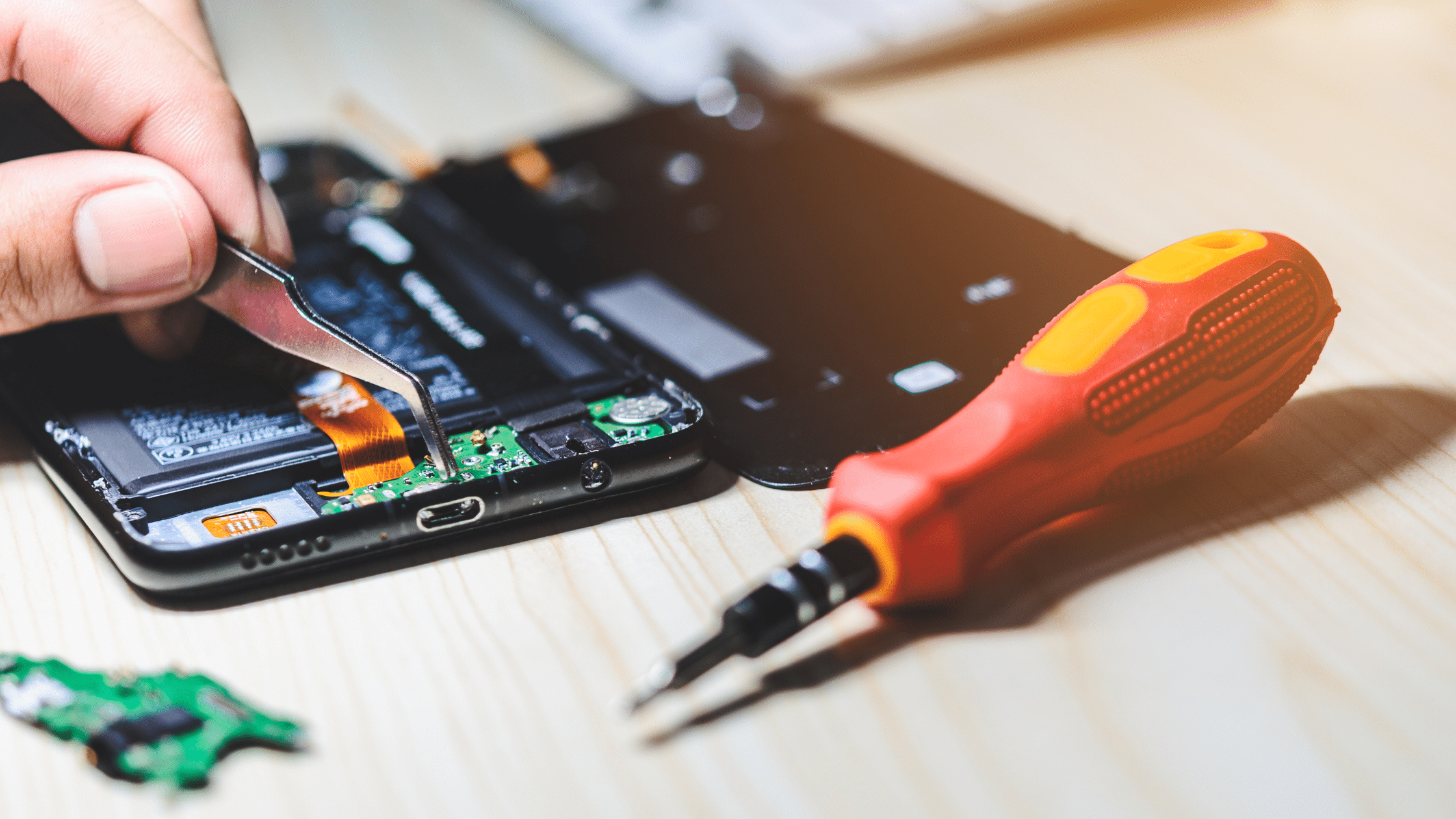
Power supply problems should generally be inspected by a qualified repair technician because opening electronic equipment can expose you to electrical hazards.
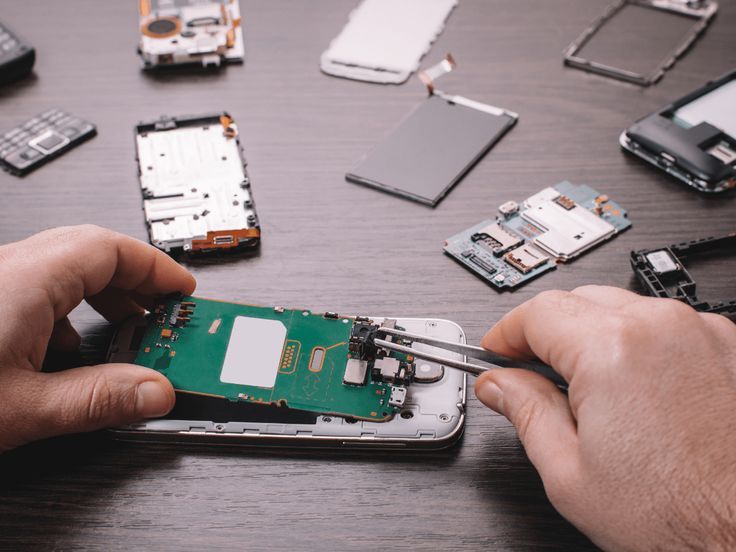
If the console still does not turn on after checking the external power accessories, the issue may involve an internal component.
Possible hardware-related causes include:
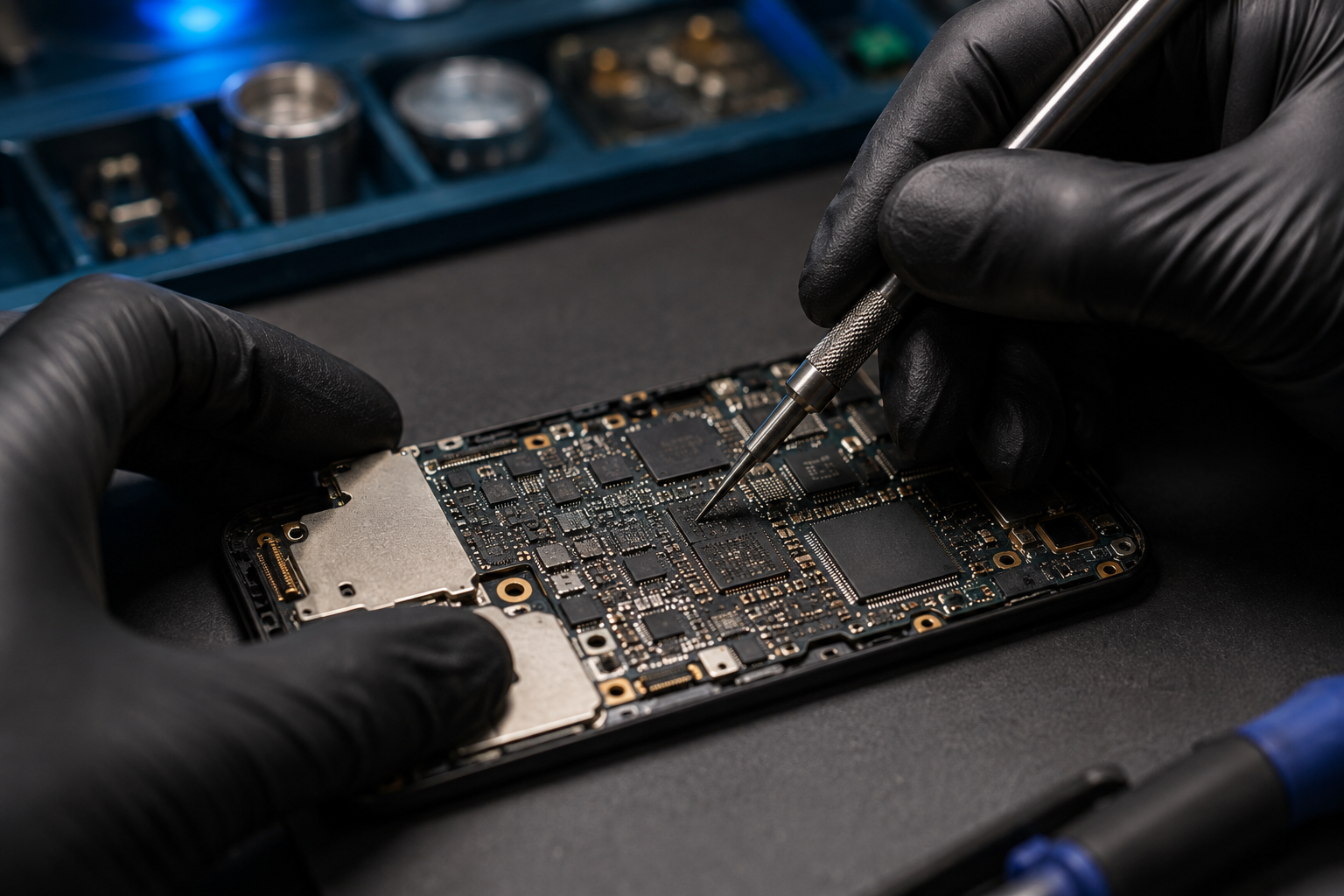
Diagnosing these problems usually requires specialized equipment and technical knowledge.
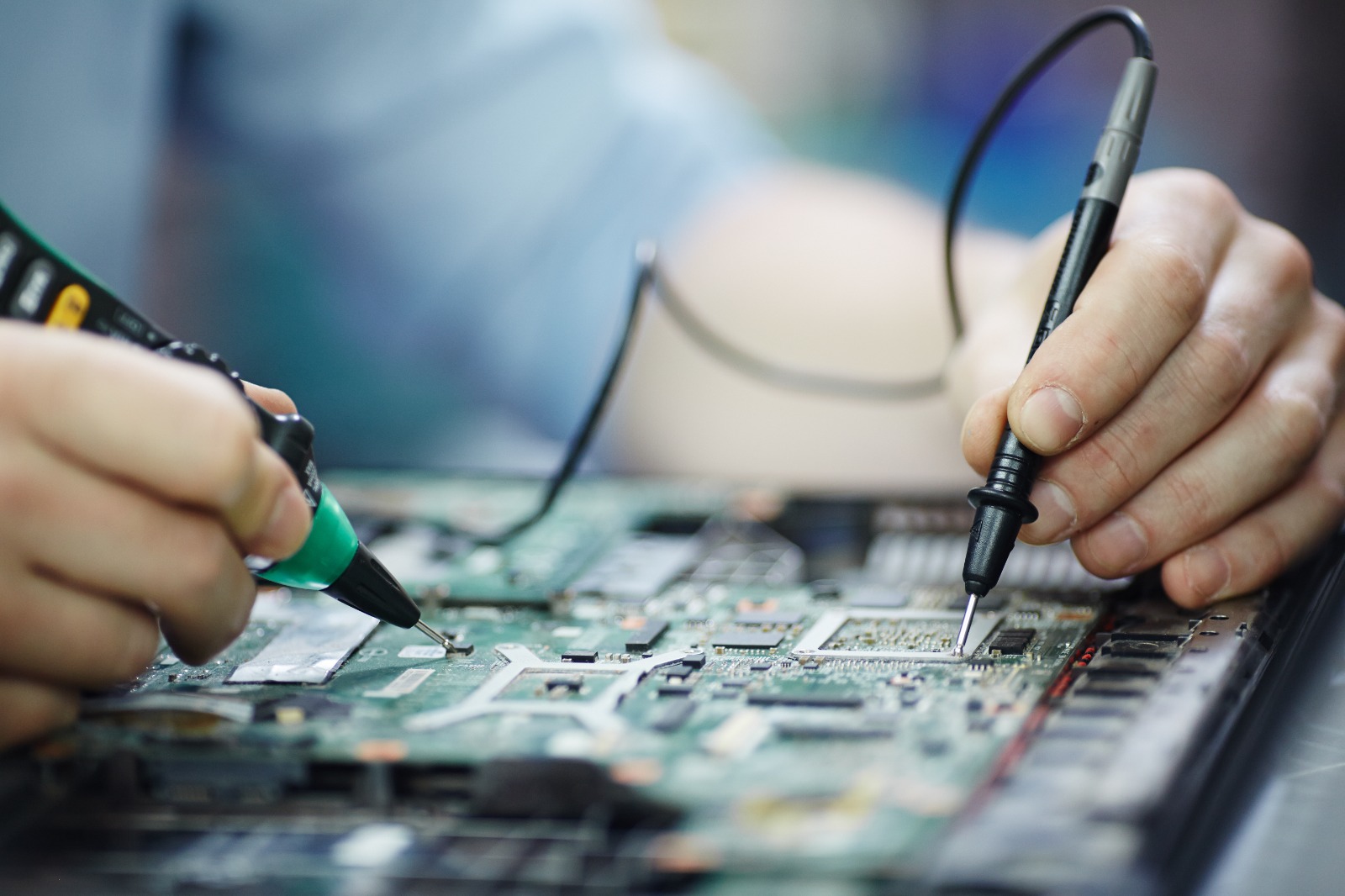
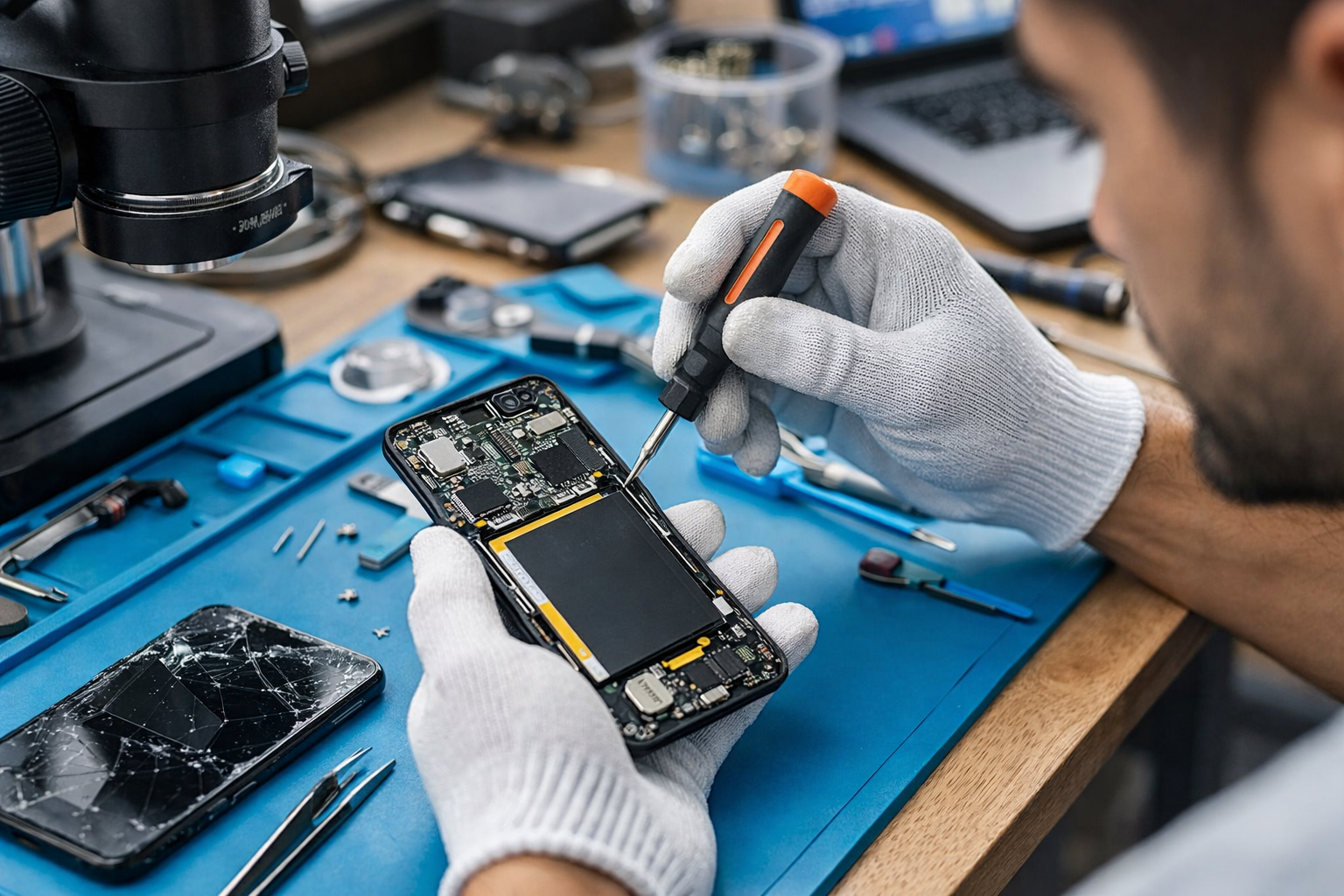
A professional technician can inspect the motherboard, test relevant circuits, and identify the faulty component instead of replacing parts unnecessarily.
Some symptoms indicate that professional inspection may be necessary.
Consider seeking repair assistance if:
Do not continue operating a device that shows signs of electrical damage or burning.
Preventive maintenance can reduce the likelihood of power and overheating problems.
Keep your console in a well-ventilated location and avoid blocking its cooling vents. Clean dust from the exterior regularly and avoid placing the device in areas exposed to excessive heat or moisture.
Use compatible power accessories and avoid low-quality or damaged cables. Protect the console from sudden electrical issues where appropriate, and avoid unplugging it while it is actively writing data unless the manufacturer recommends doing so.
Keeping system software updated can also help maintain stable operation.
If your gaming console is not turning on after checking the power source, cables, outlets, ventilation, and external accessories, the problem may require professional diagnosis.
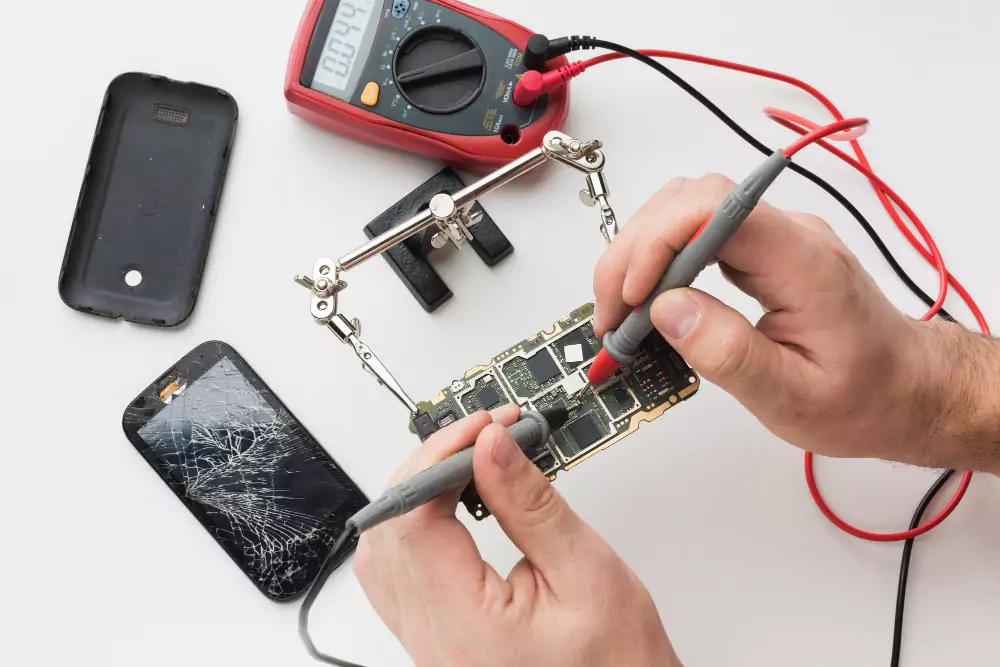
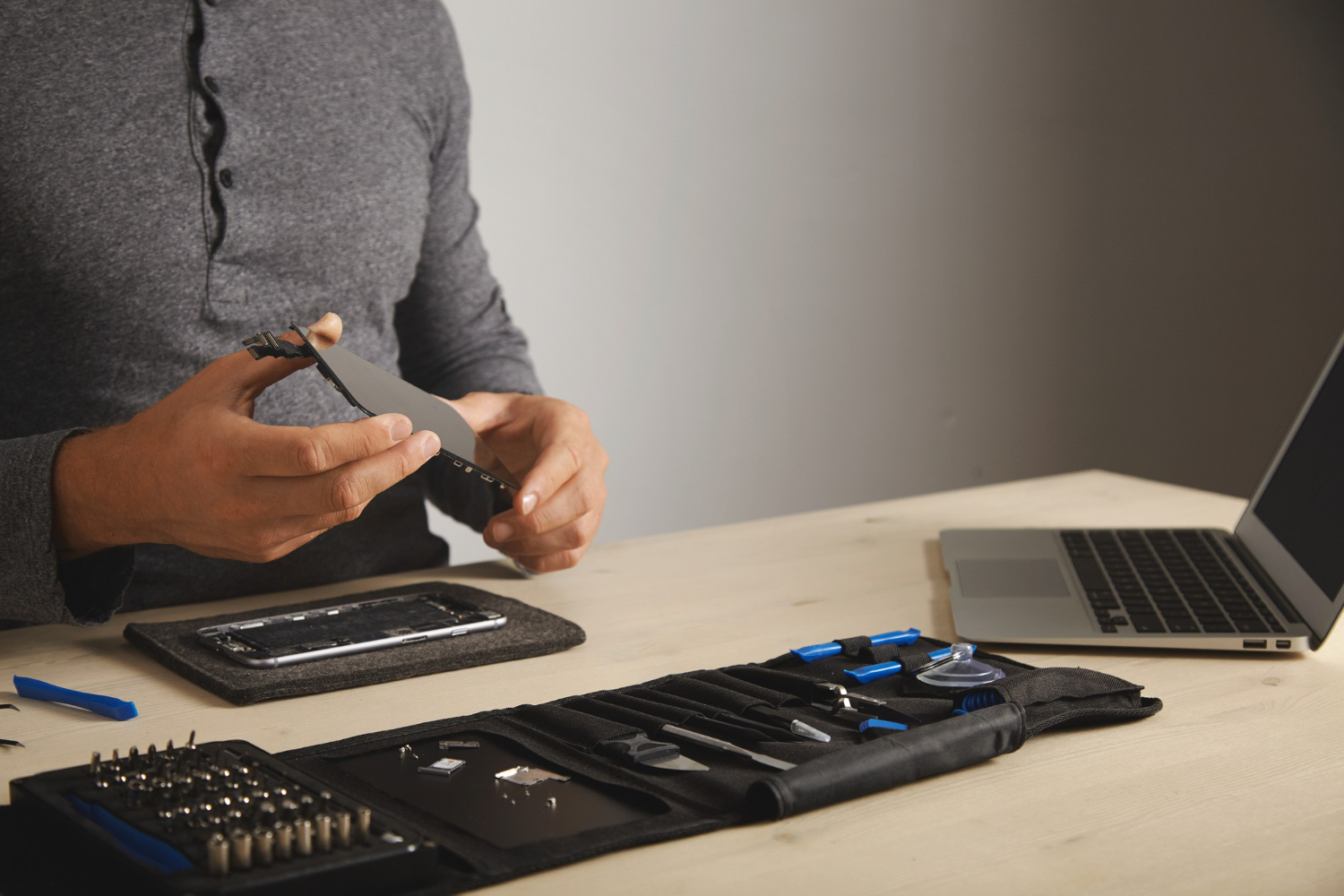
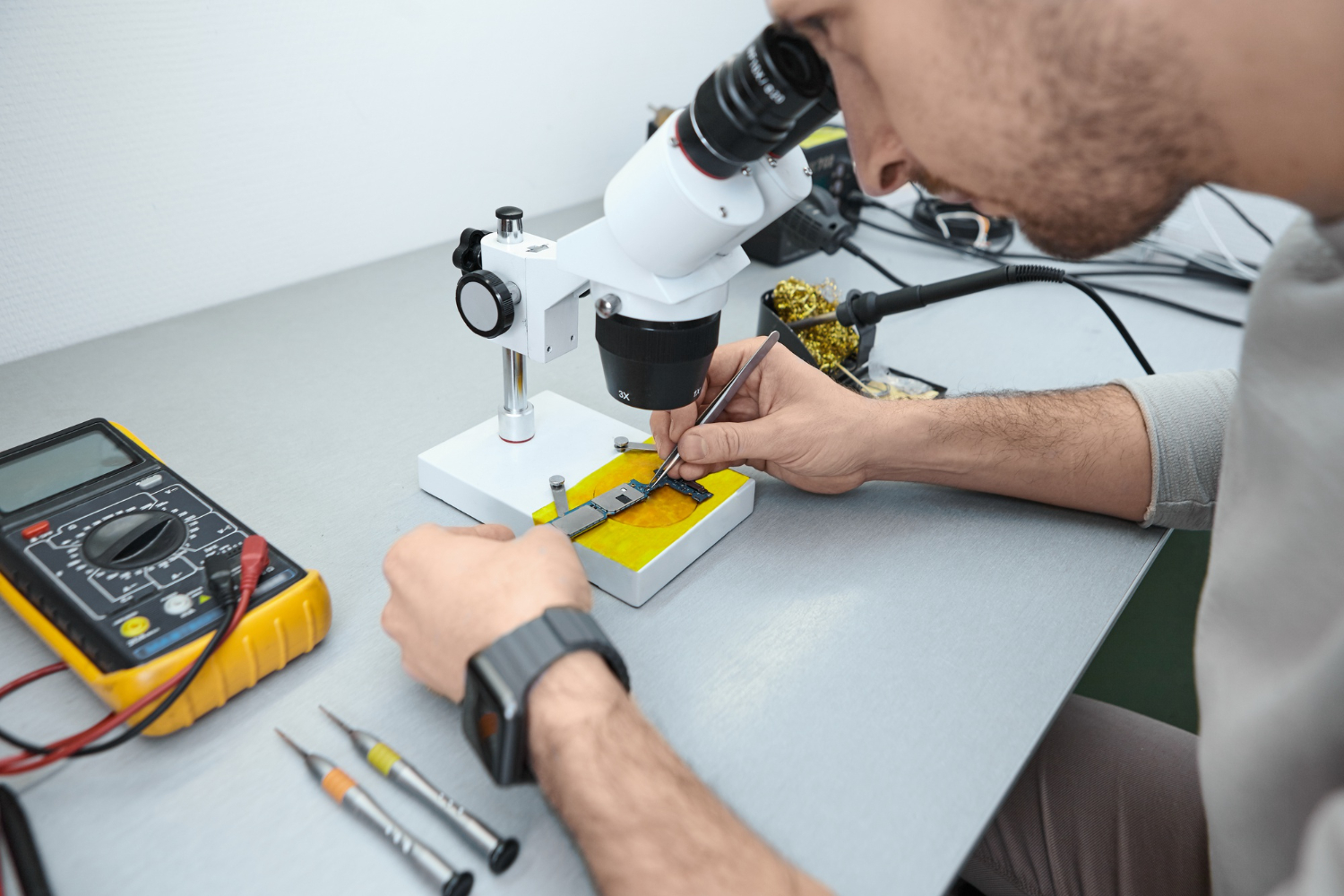
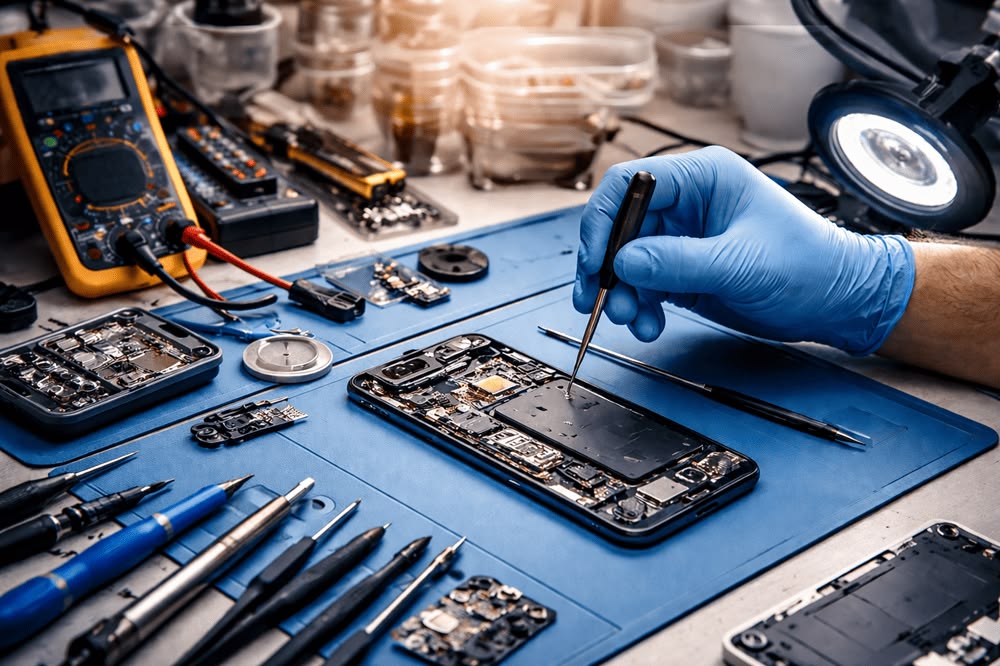
A qualified repair technician can use tools such as a multimeter, power supply tester, diagnostic equipment, and board-level testing equipment to identify hardware faults.
Professional repair can be particularly useful when the console has experienced liquid damage, electrical damage, physical impact, or repeated shutdowns.
Avoid opening the console without proper knowledge. Incorrect handling can damage delicate connectors, circuit boards, or other components.
A gaming console not turning on can result from something as simple as a loose power cable or as complex as an internal power supply or motherboard failure. Start with basic checks such as testing the wall outlet, inspecting the power cable, performing a power reset, checking ventilation, and disconnecting unnecessary accessories.
If the console still refuses to start, avoid repeatedly forcing it to power on. Persistent problems, unusual smells, overheating, liquid damage, or complete power failure may require professional diagnosis.
By identifying the symptoms early and maintaining proper ventilation, clean connections, and compatible accessories, you can help keep your gaming console operating reliably and reduce the risk of serious hardware problems.